
A Quieter Logitech G19 Display With LCDHost and a Notification Ticker
How I rebuilt my Logitech G19 screen layout in LCDHost r879, generated from Python, with a notification line fed by Claude Code, Codex, Orca and Home Assistant.
1444 Words … ⏲ Reading Time: 6 Minutes, 33 Seconds
2026-11-25 11:00 +0000
My Logitech G19 still sits on the desk for almost two decades and never let me down and have outlived a handful of gaming PCs and I have used its 320×240 screen with custom layouts ever since I got it, never with the applets Logitech ships. It is easy to assume the screen on a keyboard that old is dead. It isn’t. Good ol’ Logitech. LCDHost r879 drives it through Logitech Gaming Software and its layouts are plain XML files you can write yourself, even if LCDHost makes that harder than it should be.
I replaced my old layout I made over a decade ago, a grey wave background with a dead RSS line and a few “N/A” cores, with a black and grey one that shows CPU, GPU, VRAM, RAM, network, time and date. It adds an FPS strip only while a game reports a frame rate and a notification line at the bottom that tells me when an agent needs input or a door is open. So if you don’t own a G15, G19 or G510, there is nothing for you here but nostalgy, maybe.
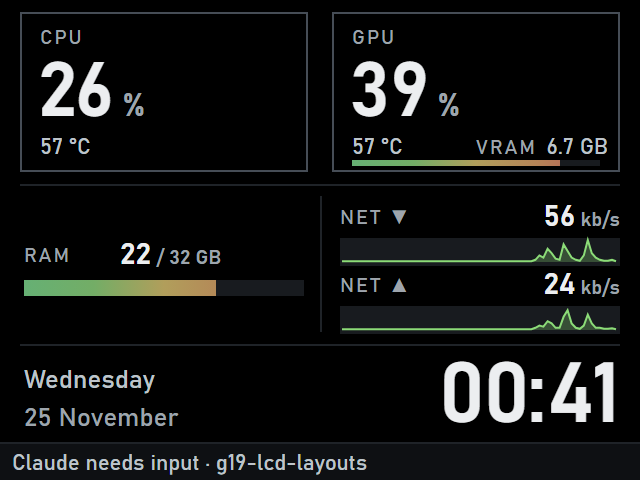
The layout, the build script and the two Python scripts for the notification line are in the g19-lcdhost repository on GitLab under the MIT license. Run git clone https://gitlab.andremohrmann.de/am-admin/g19-lcdhost.git inside Documents\LCDHost\layouts and open g19-lcdhost\deskwatch\quiet.xml in LCDHost. GPU and CPU temperature, GPU load and VRAM need GPU-Z running, FPS needs Fraps and the notification line stays empty until notify.py runs, as described below. The scripts need Python 3 with Pillow and write into their own folder, so keep them next to quiet.xml.
Find the active layout
LCDHost keeps its layouts in Documents\LCDHost\layouts and remembers the active one in the registry under HKCU\Software\Link Data\LCDHost, values layoutPath and layoutName. Close LCDHost before changing them, otherwise it writes its own values back on exit.
Generate the layout instead of hand editing it
LCDHost reads a widget’s settings in the order the plugin declares them, not by name. A missing entry shifts every following value one slot, so a text widget suddenly gets its color as its font. Each setting also has to be in LCDHost’s own multi-line format with a <publish> line, or it is ignored or the instance gets renamed.
The reliable way I found was to let LCDHost save a layout with every widget type I need, copy the ordered setting lists out of that file into a templates.json and have a Python script emit every widget from those templates, including the empty State entries. The script also draws the background, the frames and the bar images with Pillow. Change the Python, run python build.py, restart LCDHost.
Things that cost me time and are not documented anywhere I found:
- Text alignment is 0 = Center, 1 = Left, 2 = Right, 3 = Scroll (Marquee, right to left), 4 = Scroll (Loop, left to right). A negative scroll step does not reverse the direction, it blanks the widget.
- Conditional formatting works on image widgets with the source
Current Valuebut not on text widgets. My CPU readout went blank with a text rule on it. - The text file widget reads its file as cp1252. A UTF-8 “•” arrives as mojibake.
Show FPS only when there is FPS
FPS comes from Fraps (the 2000s called, remember Fraps?), which only sees DirectX 9 to 11 and OpenGL games. Without a game the widget shows “N/A”, and since text widgets ignore conditional rules there is no way to hide it directly.
The workaround is two image widgets with rules on the FPS value: an opaque strip with an “FPS” label that is drawn over the weekday while the value is above zero, and a black cover over the number when it is not. Without a game the space belongs to time and date. I have not seen this in a running game yet because Fraps was not running during testing.
The notification line
The bottom line works like the RSS line of the old layout, except it shows whatever I post to it. LCDHost’s text file widget re-reads a file regularly, so the line is just two widgets stacked on top of each other:
notify-still.txtis left aligned and does not move.notify-scroll.txtuses the Marquee mode and scrolls right to left.
A small feeder, notify.py, measures the text with Pillow in the widget’s font (Bahnschrift, 12 px). If it fits into the 308 px of the line it goes into the still file, otherwise into the scroll file and the other one is emptied. It only rewrites a file when the content changed, because every rewrite restarts the scroll.
Posting from anywhere is one command, python notify.py add "Washing machine done", with --ttl 0 --key backup for a message that stays until python notify.py clear --key backup removes it. A shortcut in shell:startup runs pythonw.exe -I notify.py run at logon, which refreshes the line every 5 seconds.
Claude Code and Codex hooks
Both agents run hook commands with the event as JSON on stdin. agent_hook.py posts “Claude needs input · folder” on a permission request, “Claude finished · folder” on stop and removes the notice again when I send the next prompt. It ignores Claude’s idle “waiting for your input” reminder, otherwise every finished session turns into a “needs input” one a minute later.
For Claude Code the entries go into ~/.claude/settings.json, once per event (Notification, PermissionRequest with matcher *, Stop and UserPromptSubmit):
{
  "matcher": "*",
  "hooks": [
    {
      "type": "command",
      "command": "C:/Users/you/AppData/Local/Programs/Python/Python311/pythonw.exe -I C:/Users/you/Documents/LCDHost/layouts/g19-lcdhost/deskwatch/agent_hook.py claude",
      "async": true,
      "timeout": 10
    }
  ]
}
Codex gets the same command with codex at the end in ~/.codex/hooks.json for PermissionRequest, Stop and UserPromptSubmit. Codex asks once whether to trust new hooks, which is the right behavior and nothing to work around.
Use pythonw.exe, not python.exe, or every hook flashes a console window. The hook only writes the message store and leaves the screen to the feeder, so it returns fast and never fails loudly into the agent.
Orca
Orca is the agent app I run most sessions in. orca agent list --json returns every agent with its state, so the feeder shows agents that need input and agents that finished in the last 20 minutes. Claude and Codex are skipped there because their hooks already report them.
Home Assistant
Put your instance’s URL into ha_url.txt next to the script or into the HA_URL environment variable. With a long-lived access token from the HA profile page in ha_token.txt next to the script, the feeder polls /api/states every 15 seconds and shows binary sensors that are on: doors and windows as “name open” and the device classes problem, smoke, moisture, gas, safety and carbon_monoxide by name. The notification bell is not part of the REST API, so it comes from the websocket command persistent_notification/get, which needs the websocket-client package. I tested it with a persistent notification created through the API; it appeared on the line within 15 seconds and disappeared again after dismissing it.
Keep the token file out of git.
Dismiss with a G-key
The obvious idea was to clear the line with one of the buttons next to the screen. They never reach LCDHost when it drives the screen through Logitech Gaming Software, and I tried both the cursor controller and the QuickAction route.
G-keys work. Create a Windows shortcut to pythonw.exe -I notify.py dismiss with the deskwatch folder as working directory and assign it in LGS to a G-key with Shortcut -> Launch Application. Mine is G1. Posted messages are deleted, while Orca and HA notices stay hidden until their state changes again, so the next “needs input” shows up fresh. A .pyw file would be the neater target, but on my machine that extension still belongs to a Python 2.7 install.
Verdict
Most of the time I look at the display for resource usage and the clock. The line at the bottom is the newer habit, mostly to see that an agent is waiting while I am in another window. The weak spot is the one you would expect: LCDHost is unmaintained.
For as long as the keyboard works, I will keep using it. Once it dies, the route is an external mini display like the Corsair XENEON Edge, which sits next to the keyboard instead of in it. I have not used one myself, so I can’t say how it compares.
Further reading
- g19-lcdhost on GitLab
- LCDHost
- Claude Code hooks
- Home Assistant REST API
- Home Assistant WebSocket API
- GPU-Z
Disclaimer: This post contains affiliate links. If you use these links to buy something I may earn a commission. As an Amazon Associate I earn from qualifying purchases. Thanks for your support!